
Connect Gmail
Blockjay connects to your Gmail mailbox over IMAP to filter spam. You connect with a one-off app password — it works only with Blockjay, you can revoke it any time, and your normal Google password is never shared. It takes about two minutes.
Before you start: 2-Step Verification
Most people already have it on. To check, open myaccount.google.com/security and look for 2-Step Verification. If it’s off, turn it on first — then come back here.
Open Google’s App passwords page
Go to myaccount.google.com/apppasswords. You may be asked to sign in again. If the page says app passwords aren’t available, your account doesn’t have 2-Step Verification on (or a Workspace admin has disabled them).
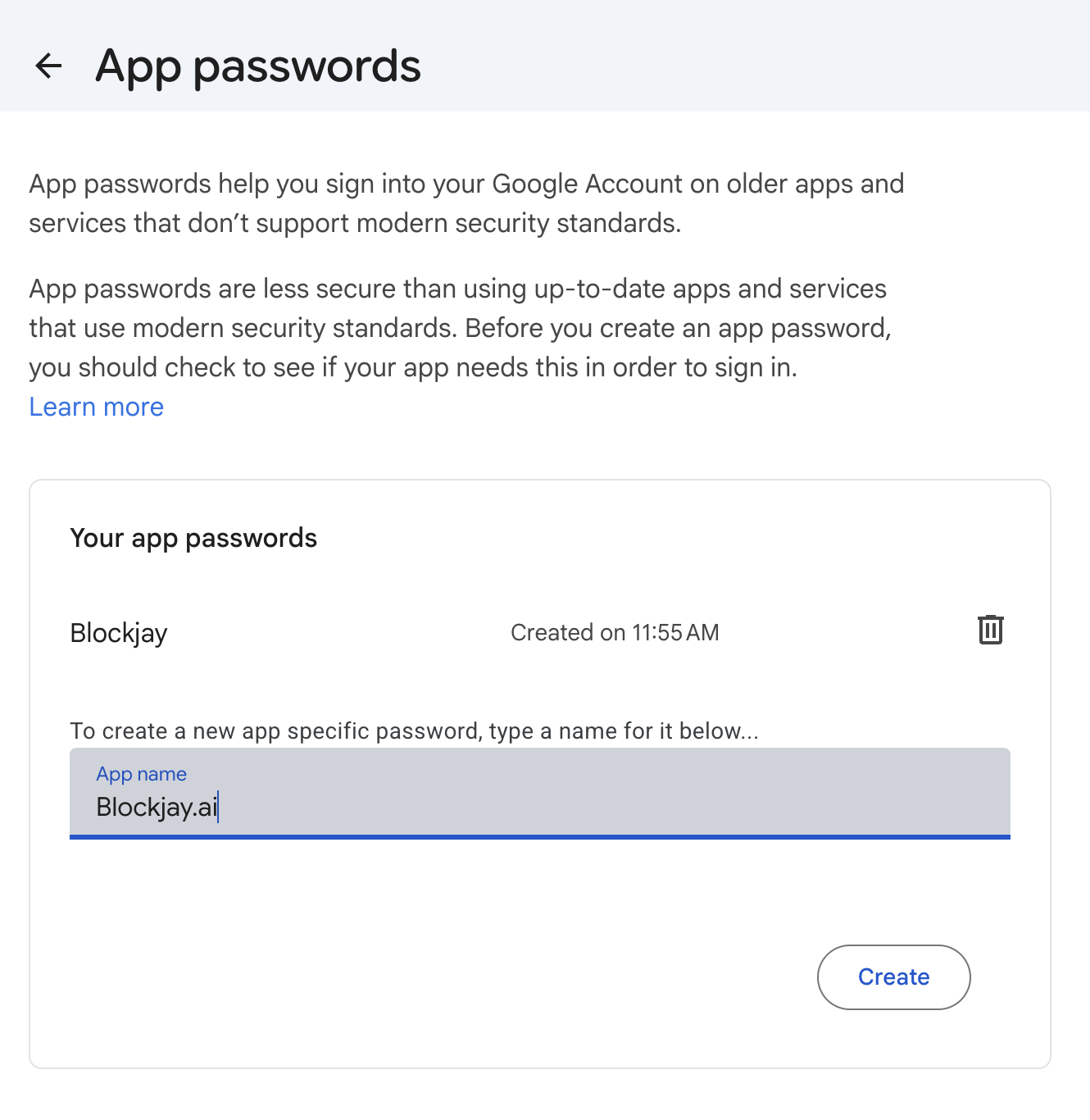
Name it “Blockjay” and create it
Type a name you’ll recognise later — Blockjay — and select Create.
Copy the password Google shows you
Google shows a 16-character password in four groups, like abcd efgh ijkl mnop. Copy it — the spaces are fine to include.
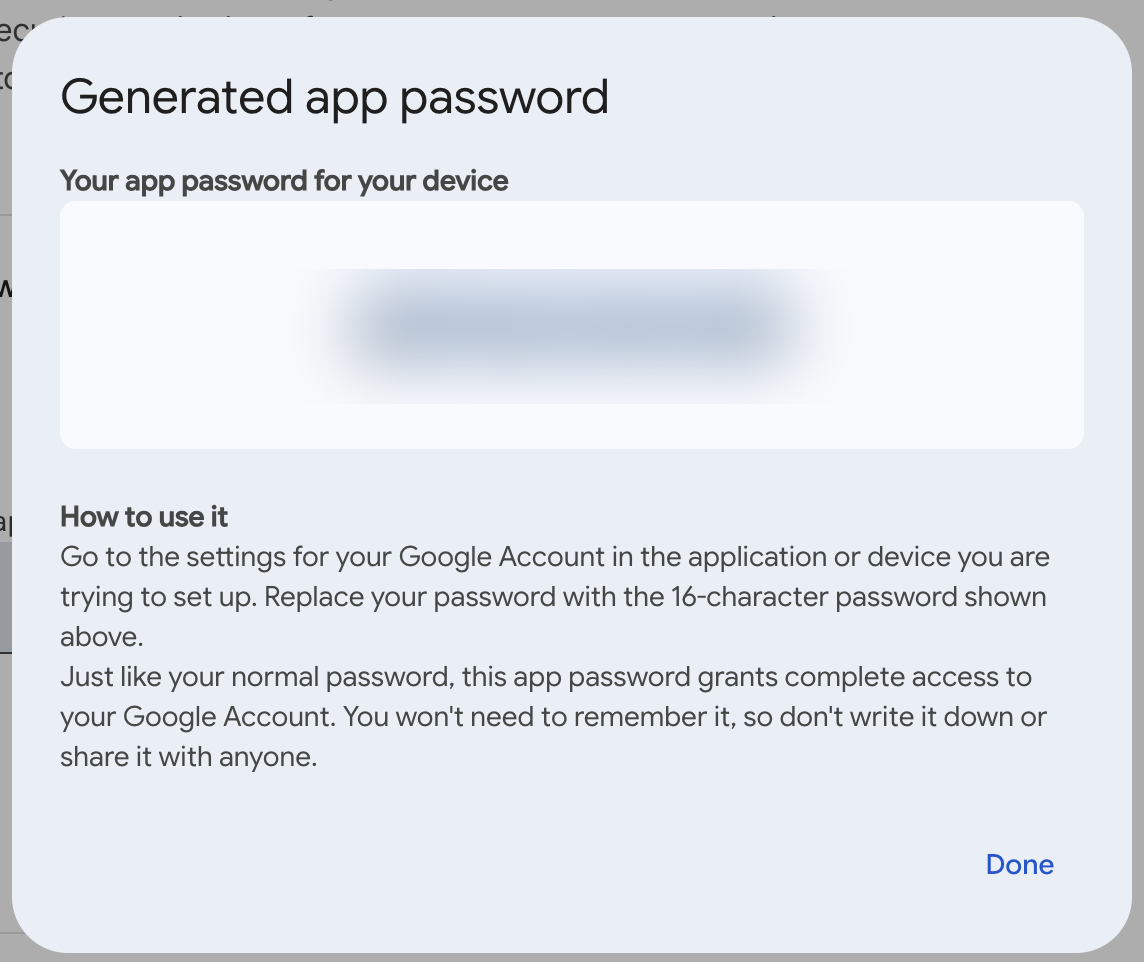
Paste it into Blockjay
In Blockjay, start connecting your mailbox, enter your Gmail address, choose Set up with an app password, and paste it when prompted. Blockjay checks the connection straight away, so you’ll know immediately that it worked. New mailboxes start in monitor mode — Blockjay sorts spam without removing anything until you switch to enforce.
Troubleshooting
“That sign-in was rejected.” You almost certainly entered your normal Google password. Create an app password (steps above) and paste that instead.
No “App passwords” option. Turn on 2-Step Verification first. On Google Workspace, an admin may have disabled app passwords — ask your admin to enable them.
Scanning stopped after a while. App passwords can be revoked from your Google Account, which pauses Blockjay. Create a new one, then in Blockjay open Settings → Connected mailboxes and choose Reconnect to paste it in — no need to remove the mailbox.
Frequently asked
Is this safe? Yes. An app password only grants mail access to Blockjay and can be revoked at any time from your Google Account. Blockjay stores it encrypted and never your normal Google password.
Will Blockjay delete my mail? No. Blockjay only sorts mail — spam moves to a quarantine you control, and nothing is ever deleted by the system. You decide what to remove.